WordPress Knowledge Base
Clear answers and practical guides for running a healthier WordPress site.

WordPress Background Updates Are Not Working as Expected: Causes, Fixes, and How to Prevent Downtime
When the WordPress administrative interface displays a critical warning indicating that background updates are not working as expected, it triggers immediate operational concerns for website managers. This status alert, generated by the native WordPress Site Health utility introduced in version 5.2, is a common indicator of underlying configuration anomalies. While the alert does not necessarily indicate that the public-facing website is currently inaccessible, it reveals a compromise in the system’s automated defense mechanisms, signaling a potential maintenance bottleneck or a future update failure. For commercial enterprises, high-traffic membership portals, and transactional storefronts, automated security patches are a primary defense against remote exploits. Resolving this warning requires a systematic understanding of why the automation has stalled, how to diagnose the issue without risking structural damage, and when to transition to professional oversight. Technical Overview of Root Causes and Resolutions The table below outlines the primary diagnostic classifications, detailing why the update engine fails, how the error manifests, and the required engineering corrections. Diagnostic Classification Technical Symptom Primary Resolution Path Filesystem Write Failures System prompts for FTP credentials during update routines; folder write tests fail. Restructure server-level file ownership via CLI ( chown ) or declare explicit FS_METHOD constants. Scheduler Dysfunction Scheduled events, plugin updates, or publication actions fail to trigger on time. Disable native WP-Cron and establish a system-level crontab process on the host. Loopback Blockages Site Health reports cURL errors 7, 28, or 60; REST API operations fail. Whitelist the server’s public IP in firewalls, CDNs, and security configuration modules. Configuration Constraints Automatic updater options are entirely missing from the dashboard interface. Remove or modify restrictive variables in the wp-config.php file. Hosting Restrictions False-positive alerts generated on specialized managed hosting environments. Verify that core files are managed directly by the host’s proprietary deployment engine. What Are WordPress Background Updates? WordPress automatic updates were introduced in version 3.7 to simplify site maintenance and protect the global ecosystem from emerging security vulnerabilities. The core application classifies updates into four distinct typologies: minor core updates (maintenance and security releases), major core releases, plugin updates, theme updates, and translation file updates. By default, stable WordPress installations automatically apply minor core releases (e.g., updating from version 6.4.1 to 6.4.2) and translation files in the background without administrator intervention. Major releases (such as transitioning from 6.4 to 6.5) and third-party plugins or themes typically remain on manual settings unless explicit opt-in preferences are established. This separation ensures that low-risk security patches are applied immediately to secure the system, while potentially breaking major updates are deferred until an administrator can supervise the deployment. Why This Warning Matters Ignoring a failing background update mechanism exposes a WordPress environment to substantial technical debt and operational risk. When the background engine fails, the site misses critical security patches that protect the core database and codebase from active exploits. Over time, outdated core files and third-party extensions develop compatibility mismatches, culminating in a critical WordPress update failed error during subsequent manual maintenance attempts. For commercial entities, the stakes of unmanaged updates are high. E-commerce platforms running WooCommerce, membership portals handling user databases, and B2B lead-generation websites cannot afford uncoordinated software modifications. If an automated update executes during peak traffic hours without pre-update testing and verified backups, a single plugin conflict can take down checkout systems, break registration forms, or generate a PHP fatal error. Consequently, managing these background functions is essential to prevent WordPress downtime and preserve transaction paths. Common Reasons Background Updates Fail Understanding why the background update warning occurs requires analyzing the interactions between the WordPress core software, the web server, and the hosting infrastructure. File Permissions and Ownership Restrictions The WordPress update engine requires write access to the server’s local storage to download archives, unpack zipped files, and replace active code directories. On many servers, file ownership is misconfigured during migration or manual installation. If the PHP-FPM or Apache process does not own the directories within the installation path, WordPress cannot modify the files. This restriction triggers a security fallback, prompting the site to ask for FTP credentials, which immediately stops automatic background updates. Filesystem Write Inability In secure enterprise environments, hosting providers may run read-only filesystems where the application layer is barred from executing direct file changes on production servers. While this configuration minimizes the threat of file injection by hackers, it also prevents WordPress from modifying its own files, resulting in background update failures. Broken Server Cron or WP-Cron Scheduler WordPress relies on a system called WP-Cron to schedule background tasks, including checking for updates, publishing scheduled posts, and executing backups. WP-Cron is not a true system cron daemon; instead, it is triggered by page visits. On low-traffic websites, scheduled events can fail to trigger because there are no active visits to prompt PHP execution. Conversely, on high-traffic sites using aggressive caching (such as Varnish or Redis page caching), requests are served directly from the cache, bypassing PHP execution and preventing the cron loop from running. Security Plugin and Firewall Interference Local security plugins and external Web Application Firewalls (such as Cloudflare WAF, Sucuri, or ModSecurity) are designed to block unexpected script requests. Because the background update process relies on cURL to perform internal HTTP loopback requests, firewalls often flag these self-calls as suspicious bot activity. If the server is blocked from resolving its own domain, Site Health will report a failed loopback request alongside cURL errors 7, 28, or 60, halting the update sequence. Hosting Provider Infrastructure Restrictions Specialized managed WordPress hosting platforms customize update management to protect their shared environments. For example, platforms like Flywheel lock core files and handle updates on their own schedule to prevent immediate, untested changes on client sites. Similarly, Raidboxes deactivates native update checks to manage deployments through its own secure internal servers. Hostinger may disable automatic processes to ensure a backup is created before any database updates occur. These platform-level restrictions generate false-positive warnings in Site Health, even though the hosting provider is actively maintaining the environment. Insufficient Disk Space and Resource Limits Downloading and unpacking core updates requires temporary storage space and server memory. If an hosting account has reached its allocated disk quota, or if the PHP environment is constrained by low memory limits (e.g., less than 256MB), the extraction process will fail silently or time out, resulting in incomplete updates and corrupt configurations. Version Control Systems and Deployment Workflows When a website is managed via version control engines like Git or SVN, the WordPress core identifies the presence of directory control markers (such as .git or .hg files). To avoid breaking codebase history and causing deployment conflicts, the core updater automatically disables file modification features, triggering the background update warning. Outdated PHP Versions and Plugin Incompatibilities WordPress core software has strict environmental requirements. If the server is running an outdated PHP version (such as 7.4 or below), or if an active plugin contains deprecated code, the internal update check may trigger fatal PHP errors. These errors crash the background execution loop before the update can complete. Restrictive Configuration Constants Often, manual configurations designed to secure a site or restrict client access remain in the wp-config.php file. The presence of specific constants will disable the update engine : PHP define( 'AUTOMATIC_UPDATER_DISABLED', true ); define( 'DISALLOW_FILE_MODS', true ); While AUTOMATIC_UPDATER_DISABLED blocks only automatic background updates, DISALLOW_FILE_MODS disables all file modifications, including manual core, theme, and plugin installations, which triggers the Site Health warning. Failed Previous Update State and Lock Files To prevent parallel update processes from corrupting files, WordPress generates a temporary lock record in the database ( core_updater.lock ) and writes a .maintenance file to the root directory during updates. If a previous update failed due to a server timeout or resource exhaustion, these safety markers may not be deleted. This leaves the system locked, preventing future updates from starting. How to Check the Problem Safely When investigating update failures on a production server, diagnostic procedures must be non-destructive. Following a structured verification sequence prevents configuration changes from breaking the site. The table below outlines the diagnostic verification checklist that administrators should work through systematically. Diagnostic Target Technical Validation Action Expected Safe Result Site Health Tool Navigate to Tools > Site Health > Status and expand the background update and REST API dropdowns. Clean status checks with zero loopback, API, or writing errors. Backup Status Confirm the existence of a fresh, restorable, offsite copy of both files and database. Verified backup verified prior to making any system adjustments. Server Error Logs Inspect PHP error files and locate any occurrences of memory exhaustion or script timeouts. Logs free of fatal PHP execution blocks or resource limit errors. File Permissions Check permission settings using an FTP manager (directories should be 755, files should be 644). System files writable by the server process without using unsafe wildcards. Configuration Files Inspect wp-config.php for variables like AUTOMATIC_UPDATER_DISABLED or DISALLOW_FILE_MODS . Clear, intentional setting of update rules without unintended restrictions. WP-Cron Events Verify that the WP-Cron system is triggering updates and that background queues are clear. Cron queues executing on schedule without persistent delays. Firewall Actions Check security plugin logs to ensure internal loopback queries are not flagged as threats. Unhindered communication between the server and its public IP address. Staging Environment Clone the live environment to a staging subdomain to test potential configuration changes safely. An isolated playground to verify updates before rolling them out. What Not to Do During troubleshooting, hasty or incorrect fixes can worsen the situation, compromising site security or causing unexpected downtime. Do not force updates on a live site without verifying backups: Initiating updates on a production site without a validated backup plan can result in permanent data loss or extended outages if a plugin conflict occurs. Never set file or folder permissions to 777: Setting permissive 777 settings allows any system process or unauthorized user to read, write, and execute files. This bypasses security firewalls and leaves the hosting environment vulnerable to backdoor code execution. Do not permanently disable security plugins: Turning off firewalls or security monitors to resolve loopback blocks leaves the system vulnerable. Instead, configure specific whitelist exceptions. Avoid editing core code or configuration files blindly: Editing wp-config.php or functions.php without syntax checks can cause syntax errors, resulting in PHP white-screen-of-death crashes. Do not update all plugins at once on busy production sites: Mass updating plugins obscures the root cause of any conflicts. Apply updates systematically to simplify troubleshooting. How to Fix It Addressing a stalled background update system involves correcting file permissions, restoring scheduled processes, and removing firewall restrictions. 1. Create a Full System Backup First Before implementing any changes, generate a complete, offsite backup of both the SQL database and the physical file directory. Confirm that this backup can be restored quickly if needed. 2. Fix Directory Permissions and Ownership If file permissions are incorrect, reset folder structures to standard configurations. Connect to the server via SSH and execute the following commands to restore standard directory ownership: Bash # Correct ownership so the web server user can write files chown -R www-data:www-data /var/www/html/wp-content # Reset standard security permissions find /var/www/html/ -type d -exec chmod 755 {} \; find /var/www/html/ -type f -exec chmod 644 {} \; (Note: Replace www-data with the specific web server user used by the hosting provider). 3. Repair WP-Cron or Transition to a System Cron If WP-Cron is failing due to aggressive caching or low visitor traffic, disable native trigger loops and replace them with a server-level system cron. First, edit the wp-config.php file, inserting the following configuration line before the termination marker : PHP define( 'DISABLE_WP_CRON', true ); Next, open the system crontab editor on the server via terminal: Bash crontab -e Add a system task to trigger the WordPress scheduler directly via the command-line PHP engine every ten minutes: Bash */10 * * * * /usr/local/bin/php -q /var/www/html/wp-cron.php > /dev/null 2>&1 This ensures that update routines, publishing tasks, and security checks run reliably regardless of visitor traffic patterns or caching rules. 4. Remove Lingering Lock Files If a previous update attempt failed, connect to the root directory of the site via FTP and check for a file named .maintenance . If present, delete this file to restore access to the admin interface. Next, open the database manager (such as phpMyAdmin), search the wp_options table, locate the option named core_updater.lock , and delete it to clear the system state. 5. Resolve Loopback Failures If firewalls are blocking internal cURL requests, check the server’s public IP address. Add this IP address to the whitelist inside the local security plugin (like Wordfence) and within any external CDN rules (like Cloudflare). This allows loopback requests to resolve securely without triggering security blocks. When This Becomes a Maintenance Audit Issue A single update failure can be an isolated technical issue. However, if background updates fail consistently, or if the Site Health tool reports multiple critical warnings, it is usually a symptom of a deeper, systemic maintenance problem. For business-critical websites, resolving these issues piecemeal is often inefficient and leaves the site vulnerable to security threats. In these scenarios, transitioning the site to a professional WordPress Maintenance Audit is highly recommended. This technical review goes beyond basic troubleshooting to evaluate the entire hosting and application environment : Update Health: Evaluating core, theme, and plugin versions to resolve conflicts and establish staging workflows. Backup Health: Designing automated, redundant offsite backups and verifying recovery procedures. Plugin Risk Profiles: Identifying abandoned, vulnerable, or nulled plugins that introduce security flaws. Server Compatibility: Ensuring that PHP versions, database systems, and server quotas are optimized for performance. Security Posture: Hardening file permissions, configuration files, and firewalls to protect against potential exploits. Performance Risks: Optimizing database assets, caching mechanisms, and performance to ensure fast loading speeds and high search rankings. Downtime Prevention: Setting up real-time monitoring to catch and fix server issues before they impact visitors or transactions. An audit changes the approach from reactive troubleshooting to proactive maintenance, ensuring that the website remains a secure, high-performing asset for the business. How iSupportive Can Help Resolving complex update errors, cURL loopback failures, and file permission conflicts requires deep technical and server-level expertise. For business owners, spending hours in terminal consoles or editing PHP configurations can be stressful and counterproductive. iSupportive provides comprehensive technical management for business-critical websites. If a system is currently offline or experiencing a fatal update crash, immediate access to Emergency WordPress Support is available to restore operations within hours. For long-term protection, business owners can request a WordPress Maintenance Audit to evaluate overall system health and close security gaps before they lead to unexpected site failures. Additionally, to improve search engine rankings and secure the visitor experience, iSupportive specializes in performance optimization and regular WordPress Maintenance Support . Administrators facing complex update configurations or persistent hosting errors are encouraged to ask for professional help to stabilize their digital presence and eliminate tech-related anxiety. Frequently Asked Questions Is it dangerous if WordPress background updates are not working? While the public-facing website may continue to load normally, a failure in background updates is a significant security risk. It prevents the automatic installation of critical minor patches that secure the core software against active exploits. Over time, this leaves the environment highly vulnerable to malicious attacks. Can this warning be safely ignored? If the website is hosted on a managed WordPress platform (like Flywheel or Raidboxes) that intentionally locks core updates to manage them via proprietary external systems, the warning is a benign false positive and can be ignored. However, on standard shared, VPS, or dedicated hosting environments, this warning requires immediate investigation and correction. Should automatic updates be enabled for all plugins? While automatic updates are convenient, enabling them globally for all plugins on complex business sites or WooCommerce stores is discouraged. Third-party updates can introduce breaking code changes or compatibility conflicts. The recommended practice is to test plugin updates in a safe staging environment first, and then apply them to the live site manually. Can failed background updates cause downtime? Yes. If a background update is interrupted by a server timeout, database lock, or low disk space, the site can become stuck in “maintenance mode” or experience a fatal PHP error (the white screen of death). Additionally, automatic updates applied to incompatible environments can disrupt key checkout workflows or form captures. When should professional WordPress support be consulted? Professional assistance should be sought when standard diagnostic steps fail, when database modifications or server root file adjustments are required, or when a site has experienced critical downtime following an update failure. Seeking expert help prevents accidental data loss and ensures a fast, secure resolution.

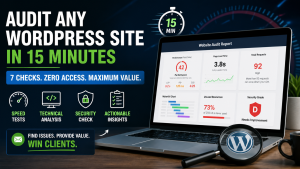
7-Step WordPress Speed & Security Audit: Diagnose a Slow Site in 15 Minutes
Keeping WordPress fast is essential for user experience, SEO, and conversions. A slow website drives visitors away and lowers your rankings. The challenge? Most performance issues hide behind plugins, hosting, and front-end assets—and you often don’t have access to fix them directly. The good news: you can audit any WordPress site in about 15 minutes using only your browser. No login. No SSH. No developer tools beyond Chrome. This guide walks you through a proven 7-step process to quickly identify performance and security issues on any site. 1. Check Real User Performance (Field Data) Start with a speed testing tool like PageSpeed Insights . Enter the website URL Focus on Field Data , not Lab Data Look at: Largest Contentful Paint (LCP) Cumulative Layout Shift (CLS) 👉 If LCP is red (above ~4 seconds), you’ve already found a major issue. Why this matters: Field data reflects real users—and that’s what search engines care about. 2. Detect Plugin Bloat (Network Requests) Open Chrome DevTools: Press F12 Go to Network tab Reload the page Now check: Total number of requests (bottom of screen) 👉 Over 80 requests = likely plugin bloat Sort by Size and look for: Huge images (especially hero sections) Large CSS/JS files from page builders Fix idea: Reduce plugins, optimize images, and remove unused features. 3. Find Unused CSS & JavaScript In DevTools: Press Ctrl + Shift + P Search for: Coverage Click Start Coverage Reload the page You’ll see how much code is unused. 👉 Many sites waste 60–80% of loaded CSS/JS Why this matters: Browser downloads everything Even unused code slows down load time Fix idea: Use lighter themes or disable unused components. 4. Identify the Biggest Bottleneck (Waterfall) Use a tool like GTmetrix or similar. Run the test Open the Waterfall tab Look for: The slowest loading file Common issues: Large hero images Blocking JavaScript External scripts 👉 One file can delay your entire page. Fix idea: Compress, lazy-load, or defer that resource. 5. Test Server Speed from Multiple Locations Use a tool like WebPageTest. Test from multiple locations Compare TTFB (Time to First Byte) : Fast in one region, slow in another? 👉 That’s a server or CDN issue , not a code issue. Fix idea: Add a CDN Upgrade hosting Optimize server configuration 6. Analyze the Tech Stack Use a tool like BuiltWith. Enter the URL and check: CMS (WordPress, etc.) Plugins/tools Analytics scripts CDN presence Red flags: Multiple tracking tools No CDN Too many third-party scripts 👉 Every external script adds delay. Fix idea: Consolidate scripts using a tag manager. 7. Check Security Headers Run the site through a security header checker. Look for missing headers like: Content-Security-Policy Strict-Transport-Security X-Content-Type-Options 👉 Many websites score very low (often F) Why this matters: Protects users from attacks Improves trust and compliance Fix idea: Add headers via server config or a security plugin. Turn This Into Clients (Freelancer Hack) This method works on any website , not just your own. Try this: Find a local business (restaurant, gym, clinic, etc.) Run all 7 checks Take screenshots Send a simple email: “I found a few speed and security issues on your website that may be affecting performance and user experience. Here’s what I found and what it means.” No pitch. No pricing. 👉 Just value. This approach builds trust and often turns into paid work—without cold outreach. Conclusion You don’t need access to a WordPress dashboard to diagnose performance issues. With just a browser, you can: Identify slow loading elements Detect plugin bloat Find unused code Spot server issues Analyze tech stack problems Improve security And you can do it in 15 minutes or less . Whether you’re optimizing your own site or looking for new clients, this process gives you a fast, reliable way to uncover real issues—and fix them. Pro Tip: Turn this into a repeatable checklist and you’ll never run out of optimization opportunities.

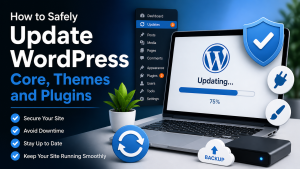
How to Safely Update WordPress Core, Themes and Plugins
Keeping WordPress core, themes and plugins up-to-date is vital for security, performance and compatibility. Outdated code can introduce vulnerabilities, slow your site or break features. A well-organized update routine protects your site by combining regular backups, staging sites, scheduled updates and the right hosting environment. 1. Prepare a Safe Update Workflow Establish a schedule – Set a regular cadence for updates to prevent long gaps between releases. Weekly or monthly updates work well for most sites. High‑traffic or mission‑critical sites might apply minor updates daily during off‑peak hours. Back up your site – Always create complete backups of the database and files before updating. Use a reliable backup plugin or your hosting provider’s backup tools. Periodically test your backups on a test environment to ensure they can be restored. Use a staging site – Avoid updating directly on a live site. A staging environment mirrors your live environment but isn’t public. Clone your live site there, apply updates and run a battery of tests—login, checkout, forms, media uploads—before deploying to production. Choose off‑peak hours – Perform updates during low‑traffic periods to minimize disruption. For e‑commerce, this might be late night or early morning. Document changes – Keep a log of dates, versions and any issues encountered during updates. This helps troubleshoot and maintain a clear update history. 2. Automatic vs Manual Updates WordPress supports automatic background updates. Deciding what to automate depends on your site’s complexity and tolerance for change: Minor releases and security patches – Background updates are enabled by default for minor releases and security fixes. These updates are generally safe to install automatically and ensure timely protection against vulnerabilities. Major core releases, themes and plugins – Significant updates can introduce breaking changes. Many administrators disable automatic major updates and apply them manually after testing on staging. You can adjust behaviour with constants in wp-config.php such as setting WP_AUTO_UPDATE_CORE to 'minor' for minor releases only. Hybrid approach – Many sites use a hybrid strategy: enable automatic minor and security updates but review and manually apply major updates. This approach balances convenience with control. 3. Update WordPress Core Check backups – Confirm your latest backup is available and functional. Enable maintenance mode – WordPress automatically enters maintenance mode when updating from the dashboard. If you use the command line, enable maintenance with wp maintenance-mode activate . Run the update – In the dashboard, go to Dashboard → Updates and click Update Now , or run wp core update via WP‑CLI. WordPress will download the new files and replace outdated core files while preserving your configuration and content. Update the database – After major updates, WordPress may prompt you to update the database. Click the prompt in your dashboard or run wp core update-db . Disable maintenance mode – WordPress exits maintenance mode automatically on successful completion. If updating via the command line, run wp maintenance-mode deactivate . Test your site – Visit key pages, submit forms, process a test order, check your admin dashboard and scan for errors in browser consoles or logs. 4. Update Themes and Plugins Themes and plugins add features but also introduce more potential conflicts. Follow these practices: Prioritize security patches – Apply updates flagged as security fixes immediately. Delaying can expose your site to exploits. Check plugin activity – If a plugin hasn’t been updated in over a year, evaluate its necessity. Consider replacing abandoned extensions with actively maintained alternatives. Update in staging – Apply plugin and theme updates on your staging site first. Verify that page layouts, shortcodes, custom functionality and integrations continue working. Use selective auto updates – You can enable automatic updates for low‑risk plugins and themes while disabling them for those that are complex or critical. This is managed via filters such as auto_update_plugin and auto_update_theme or in the dashboard. Clear caches and check logs – After updates, purge any caches (object, page, CDN) to ensure new files load. Monitor logs for errors or performance changes. 5. Choose Reliable Hosting and Monitoring Your hosting environment has a big impact on update safety and performance: Managed WordPress hosting – Managed providers handle core, theme and plugin updates, perform daily backups, offer staging environments and scan for malware. They often include automatic rollback if an update fails and provide performance optimization such as caching and server‑level tweaks. Good infrastructure – High‑quality servers with optimized PHP and database configurations reduce the risk of timeouts or errors during updates. Uptime and ping monitoring – Use an external monitoring service that pings your site regularly and alerts you if it goes offline or responds slowly. Many hosting dashboards include basic uptime checks. Independent tools can monitor ping, SSL and DNS and send alerts via email or SMS. 6. Additional Best Practices Use WP‑CLI – Command‑line tools streamline updates and allow automation, such as wp core update , wp plugin update --all and maintenance mode commands. Maintain an update calendar – Coordinate updates with your team and avoid high‑traffic campaigns or events. Monitor performance – Compare page load times and server metrics before and after updates. Roll back if you observe significant slowdowns. Rotate credentials – Keep your PHP version and other server software up-to-date. Remove unused themes and plugins and regularly update passwords. Troubleshooting Tips Even with careful planning, updates can sometimes cause issues: White screen or fatal errors – If your site fails to load, restore your backup immediately. Reactivate plugins and themes one by one to identify the conflict. Broken layouts – Flush caches and check your theme compatibility. Sometimes clearing your CDN or browser cache resolves display issues. Stalled database updates – If a database upgrade screen doesn’t complete, check server permissions and run wp core update-db via WP‑CLI. Automatic updates not running – Verify constants in wp-config.php that control updates. Hosting providers may disable auto updates at the server level; contact support if necessary. Downtime alerts – If your monitoring service reports downtime after an update, revert the change and examine logs. Ensure that scheduled tasks (cron jobs) are running as expected. Conclusion Regularly updating WordPress core, themes and plugins is essential for a secure, high‑performing website. By establishing a schedule, backing up data, testing updates in a staging environment and using reliable hosting, administrators can apply updates confidently without compromising stability. Combining automatic minor updates with manual testing for major releases and monitoring your site’s uptime ensures you stay secure while maintaining full control over your site’s behavior.